Thursday, December 18, 2008
How to Run Firefox 2 and Firefox 3 Simultaneously
With Firefox 3 finally released, it is time to upgrade and enjoy the new features and the performance increase it offers. But, the truth is we have learnt to trust our current profile in Firefox 2 and naturally you’d be leery of upgrading to Firefox 3. For good reasons. There are still some extensions that haven’t been updated for Firefox 3.
But, with all the hype that’s going on with Firefox 3 (I am guilty of that too  ) and if you are curious to play with it without messing your current Firefox 2 setup, here is how you do it.
What are Profiles?
A profile in Firefox stores your set of preferences, settings, bookmarks, passwords, extensions, themes, etc. If you and your partner share a computer at home, you could have a profile for each of you. Your better half wouldn’t have to go through your bookmarks or put up with the dark theme you love or necessarily like all the GreaseMonkey scripts you use.
Or, if you are like me you might use a profile loaded with all the webmaster extensions to get down and dirty and use a lightning fast profile stripped of most of the extensions for casual browsing.
Setup a Test Profile
Setting up a test profile is very easy.
- Run this from the MS DOS command prompt:

firefox.exe -profilemanager - Click on ‘Create Profile’ and name it as you wish, for e.g., playbox
- Uncheck the ‘Don’t ask at startup’ if you wish to choose the profile every time you start Firefox. (if not I will show you how to create one click shortcuts for every profile you have)
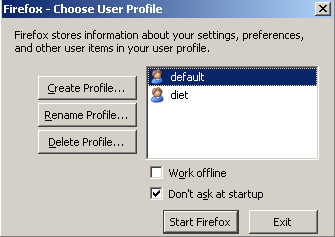
- If you don’t want to choose your profile every time, just create a new shortcut for Firefox with the Target in Properties looking like
C:\Program Files\Mozilla Firefox\firefox.exe -p playbox
(substitute ‘playbox’ with the name of your profile) and name it something like ‘Firefox Mean‘ and ‘Firefox Lean‘. - You can also delete any old profiles right from here.
Tools you need
You will need these 2 Firefox extensions to perform backup of your extensions and package them into a single extension file.
- Install FEBE - Firefox Environment Backup Extension Firefox extension is used to create backups of everything about your Firefox profile - the whole profile or custom parts of your profile. You can also schedule daily backups so you never lose your settings or extensions or profiles.
- Install CLEO - Compact Library Extension Organizer Firefox extension helps packaging your desired extensions backed up using FEBE into a one single installable extension (.xpi) file.
It’s Time to Backup
It doesn’t matter if you use multiple profiles or not, it is always a good idea to backup Firefox environment with FEBE. FEBE backups are very customizable. 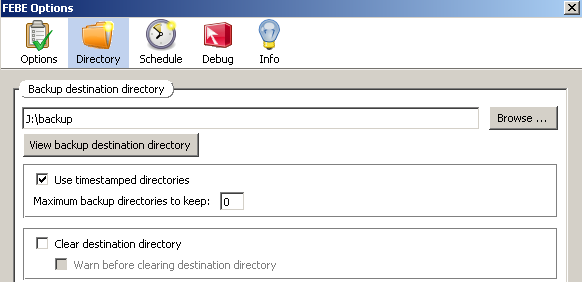
- Open Tools -> FEBE -> FEBE Options in Firefox and choose either ‘Selective’ or ‘Full Profile’ option.
- Choose the directory you want to backup to. I recommend using ‘timestamped directories’ as this might help you troubleshoot if you have problems due to new extensions or any customizations you might be doing.
- Schedule your daily backup or you could use the ‘Perform Backup’ from FEBE menu.
Rollin’ Rollin’ Rollin’
You can individually ‘Restore’ extensions from your backup directory using FEBE to a different profile. But, using CLEO you can create a custom .xpi file with extensions you choose from your backup destination and install in a different profile or even a different computer in one shot. This is a great way to keep your Firefox extensions the same across your laptop, desktop and work computers.
- Open Tools -> FEBE -> CLEO -> CLEO Options in Firefox menu and set the destination directory for your cleopack (installable .xpi file).
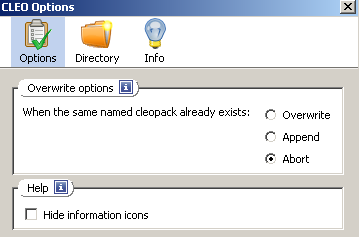
- Choose ‘Create cleopack’ and enter a name.
- Use ‘Select items to package’ to pick and choose the extensions you want to package.
- Hit ‘Create cleopack’ .
Duplicate your Extensions
We are almost done! I promise.
- Open up the new profile and go to File -> Open File and browse to the ‘cleopack’ you created with CLEO. (or hit Ctrl-O)
- Accept to install the extension.
- Restart Firefox and you are done!
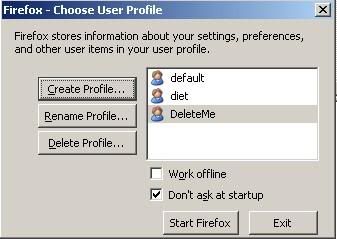
- Create a New Profile: You can create a profile exclusively for Firefox 3 in your Firefox 2 Profile Manager. Name it something like DeleteMe so you know you are just testing it.
From your command prompt,
c:\Program Files\Mozilla Firefox\firefox.exe -ProfileManager ( for Windows) - Download Firefox 3: Download the latest Firefox 3.
- Install Firefox 3: You have choose a different installation folder than the default one as choosing the default will overwrite your current Firefox 2! You could also choose to get the Portable Firefox 3.
- Start Firefox 3: Start Firefox 3 with the new DeleteMe profile you created. The key here is the ‘-no-remote’ parameter as it makes Firefox start a second Firefox.exe process with the new profile

From your command prompt,
d:\firefox3\firefox\firefox.exe -P DeleteMe -no-remote
( for Windows - I unzipped the Firefox 3 nightly build to D:\firefox3 directory)
You could also create a Desktop Shortcut and change the property of the shortcut to look like in the Picture below so you don’t have to type it all in every time.
You could run your Firefox 2 simultaneously with Firefox 3 because they are both using different Profiles.
Now that I have Firefox 2 & Firefox 3 simultaneously, you can safely try it out and see which extensions work and which don’t before actually making the switch.


Subscribe to Posts [Atom]
